Your Guide to Renaming Apps on iPhone: Personalize Your Home Screen
Can You Really Rename Apps on Your iPhone? Let's Find Out!
So, you've been staring at your iPhone's home screen, and maybe some of those default app names just aren't cutting it for you. Perhaps you want to give a favorite app a more personal touch, or maybe you're just looking for a bit more clarity. Whatever your reason, the burning question is: Can you rename apps on your iPhone? It's a great question, and I'm here to tell you that while you can't *directly* change an app's original name as Apple or the developer set it, you absolutely *can* customize how it appears on your home screen. We're talking about creating custom icons and names that launch your favorite applications, giving your device a truly unique feel. It's a neat trick, and it's all thanks to Apple's super powerful (and sometimes underutilized) Shortcuts app.
I've always been a big fan of making my tech feel like *mine*. And let's be real, a uniform grid of app icons can sometimes feel a bit impersonal. This method lets you break free from that. We're gonna dive into how you can transform your home screen, one app icon at a time, using nothing but tools already available on your iPhone. No fancy software, no jailbreaking, just pure customization. Ready to make your iPhone home screen reflect a little more of your personality? I thought so!
The 'Official' Apple Way: Leveraging the Shortcuts App
Alright, let's get into the nitty-gritty of how we actually do this. The key player here is the Shortcuts app. If you've never really messed with it, don't worry, I'll walk you through it. This app, pre-installed on every modern iPhone, allows you to automate tasks and, importantly for us, create custom app launchers for your home screen. It's a game-changer for personalization, and it's totally legitimate.
What You'll Need Before We Start
- Your iPhone: Obviously!
- The Shortcuts App: Make sure it's updated. It usually handles itself, but just check.
- An Idea for a Name: What do you want to call your app?
- An Image (Optional but Recommended): This is where the magic really happens. You can use any image from your Photos library as a custom app icon. Think fun, quirky, or super minimalistic. I often grab images from the web that fit my aesthetic.
That's it! No complex downloads or anything. You've got everything you need right there in your hand.
Step-by-Step: Creating a Custom App Icon and Name
This process might seem like a few steps, but once you do it once or twice, you'll be a pro. It's actually quite intuitive.
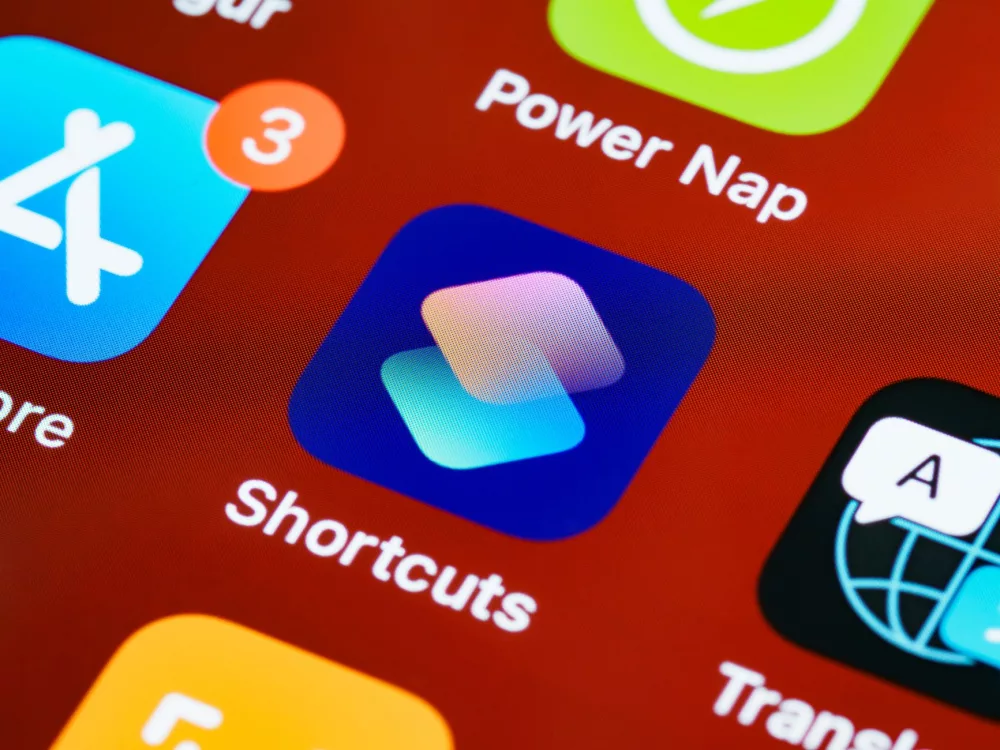
- Open the Shortcuts App: Find it on your home screen or in your App Library. It's the blue icon with two overlapping squares.
- Tap the ' + ' Icon: In the top right corner, you'll see a plus sign. This is how we create a new shortcut. Tap it!
- Add an Action: Now you're in the new shortcut creation screen. Tap on 'Add Action'.
- Search for 'Open App': Use the search bar at the top to find the 'Open App' action. Select it.
- Choose Your App: After selecting 'Open App', you'll see the word 'App' in blue. Tap on it. This will bring up a list of all the apps installed on your iPhone. Scroll through and select the app you want to customize. For example, let's say we're renaming 'Messages'.
- Configure Your Shortcut: Once you've selected the app, you'll see something like 'Open [App Name]'. Now, we need to save this shortcut. Tap the tiny share icon (the square with an arrow pointing up) at the bottom of the screen.
- Select 'Add to Home Screen': In the share sheet that pops up, scroll down a bit until you see the option 'Add to Home Screen'. Tap that.
- Customize Name and Icon: This is the fun part! On the 'Add to Home Screen' preview screen:
- Rename it: Tap on the text field below the icon preview (it'll usually say the app's original name). Delete the current name and type in your desired custom name. Maybe 'Talk Time' for Messages, or 'Pics' for Photos.
- Change the Icon: Tap the small icon preview to the left of the name. You'll get three options: 'Take Photo', 'Choose Photo', and 'Choose File'. I almost always use 'Choose Photo' to select an image from my camera roll. Find that perfect image you prepared!
- Tap 'Add': Once you're happy with your custom name and icon, tap 'Add' in the top right corner.
Voila! Go back to your home screen, and you'll find your newly created custom app icon with its fresh new name. Pretty cool, right? You've just personalized your iPhone in a way many folks don't even realize is possible.
A Quick Note on Icons: Making It Your Own
For the icon, don't be afraid to get creative! You can download high-resolution icons from websites like Flaticon or Unsplash, or even just take a screenshot of something you like. I've often used abstract patterns or even photos of my pets to replace mundane app icons. It really makes your phone feel more personal. Just remember to crop your chosen image into a square before adding it, as the system will try to fit it into a square shape anyway.
Understanding the Nuances: What You're *Really* Doing
Now, it's important to understand what's actually happening here. You're not permanently renaming the original app. What you're creating is a *shortcut* on your home screen. When you tap this custom icon, it runs the shortcut, which then tells your iPhone to 'Open App X'.
The Original App Stays Put
This means the original app icon and its default name will still exist. It'll be in your App Library, and if you have it on another home screen page, it'll be there too. Many people choose to hide the original app icon by removing it from the home screen (but not deleting it!) so only their custom shortcut remains visible. You can do this by long-pressing the original app icon, tapping 'Remove App', and then selecting 'Remove from Home Screen'. Don't worry, the app is still on your phone, safe and sound in the App Library.
Notifications and App Library
Notifications will still come from the original app, with its original name. So, if you get a message, it'll say 'Messages' sent a notification, not 'Talk Time'. This isn't a huge deal for most people, but it's something to be aware of. Also, when you search for apps using Spotlight, it will still bring up the original app name, not your custom one, although your custom shortcut *will* also appear in the search results if you search for its name.
Deleting Your Custom Shortcut
If you decide you don't like your custom icon or name anymore, simply long-press on the custom icon on your home screen, tap 'Remove Bookmark', and then 'Delete'. This only removes the shortcut; the actual app remains untouched. You can always recreate it if you change your mind.
Are There Other Ways? The Unofficial Route
I know some of you might be wondering about other, perhaps more direct, ways to rename apps. Historically, and even currently, if you *jailbreak* your iPhone, you can gain much deeper control over the operating system, including directly modifying app names and icons without creating shortcuts. However, I really can't recommend this for most users.
Jailbreaking comes with a whole host of potential issues: security vulnerabilities, voiding your warranty, stability problems, and often making it harder to get official iOS updates. For the vast majority of iPhone users, the Shortcuts app method is the safest, most reliable, and perfectly functional way to achieve home screen customization. It gives you a great balance of personalization without compromising your device's security or performance.
Why Bother? The Benefits of Personalization
You might be thinking, "This seems like a bit of work for just a name and icon change." And sure, it takes a few minutes. But let me tell you, the benefits of personalizing your home screen go beyond just aesthetics. For me, it's about:
- Enhanced Visual Appeal: A home screen that reflects your style can truly lift your spirits every time you unlock your phone. It's a small joy!
- Improved Organization: You can use custom names and icons to group apps conceptually in a way that makes more sense to *you*, even if they aren't in the same folder. Maybe all your wellness apps get a green theme, or your productivity tools a sleek, minimalist look.
- Quick Recognition: A unique icon or a short, memorable name can sometimes make an app easier to spot at a glance, especially if you have a lot of apps.
- A Sense of Ownership: Your iPhone is a personal device. Customizing it makes it feel more like *yours*, rather than just another mass-produced gadget. It's about making your tech an extension of you.
I've customized my own iPhone's home screen extensively using this method, and I can honestly say it's made my daily interactions with my device much more enjoyable. It's empowering to know you have this level of control over your digital environment.
So, go ahead! Experiment with different names, try out various icons. Your iPhone is a canvas, and with the Shortcuts app, you've got the brush to paint your perfect home screen. Enjoy the process, and don't be afraid to make your device truly unique!
Editorial Team
Staff analyst and editor writing in-depth guides, analysis, and comprehensive coverage.